4 min read

Connect Zwift to Stamina so your planned bike and run workouts are ready to use indoors, and your completed Zwift sessions are automatically added back into your Stamina training history.
This guide explains how to connect Zwift, how workout syncing works, and how to disconnect Zwift later.
How to connect Zwift to Stamina
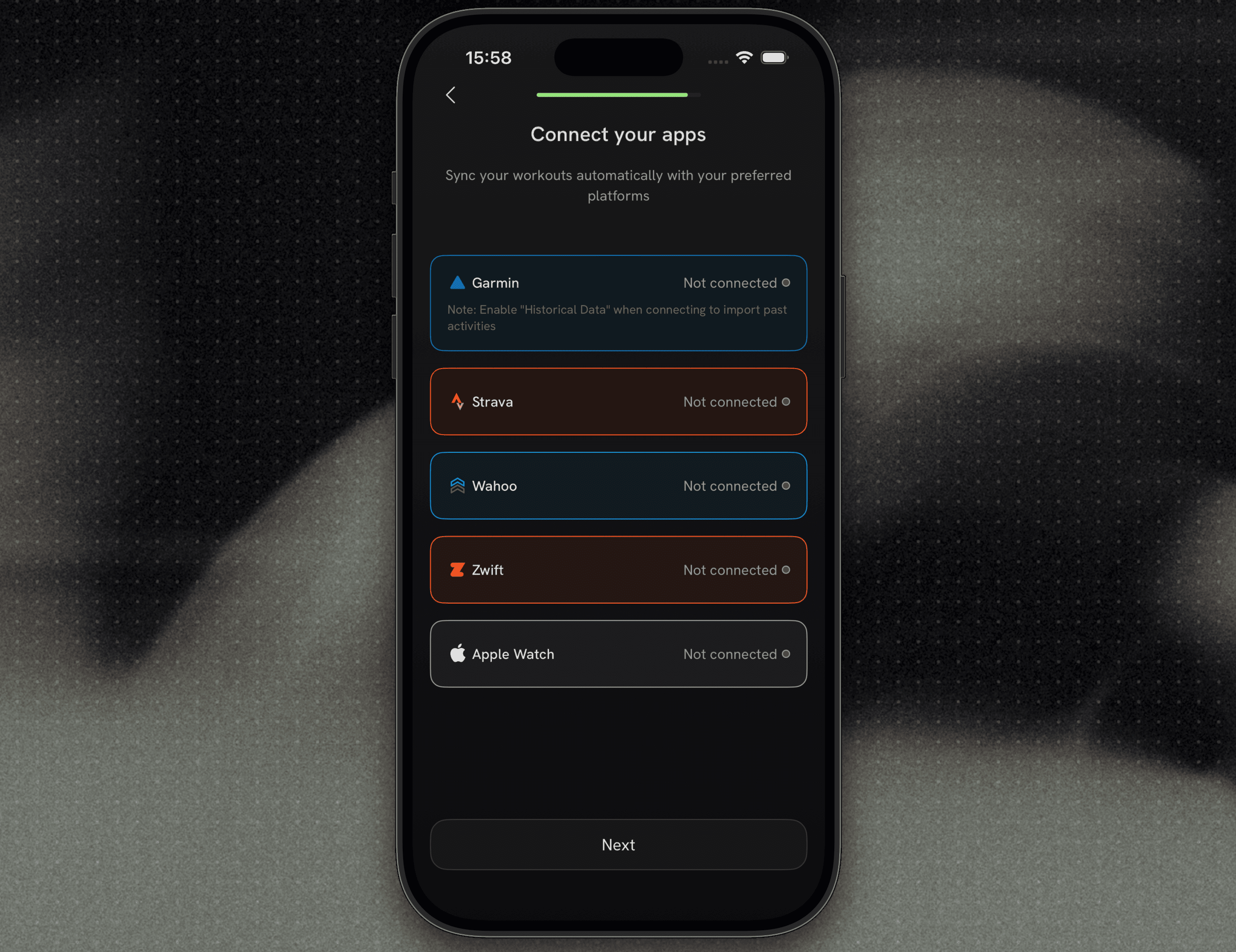
1. Choose Zwift
Open Stamina and select Zwift from your list of available connections.
You can do this during onboarding, or later from Profile → Connected Apps and Devices.
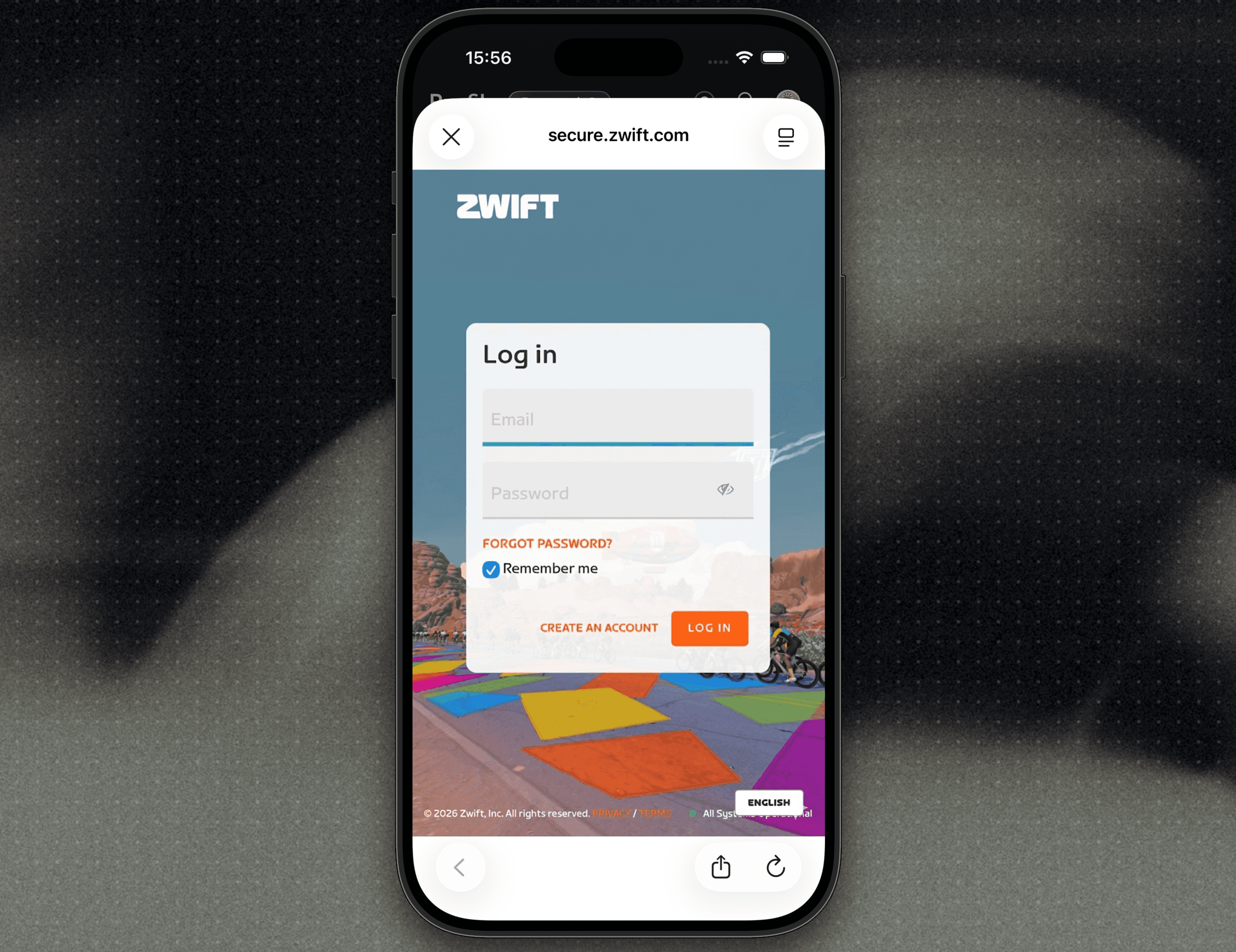
2. Authorise the connection
Sign in with your Zwift account and allow Stamina to connect.
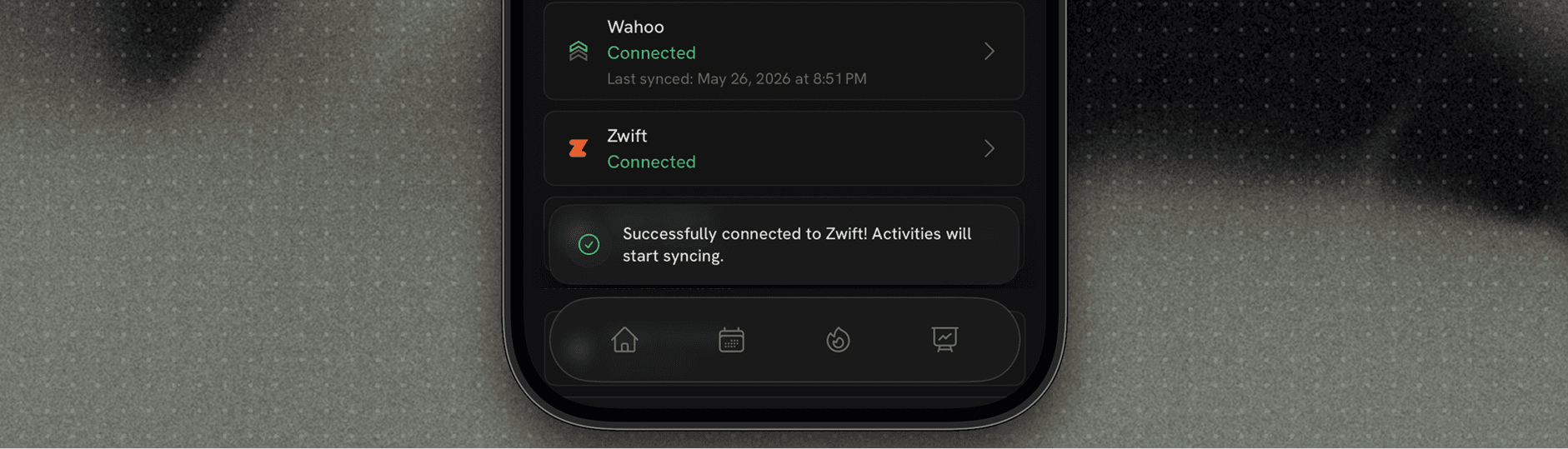
Once you return to Stamina, Zwift should appear as Connected.
How syncing works
Planned workouts from Stamina to Zwift
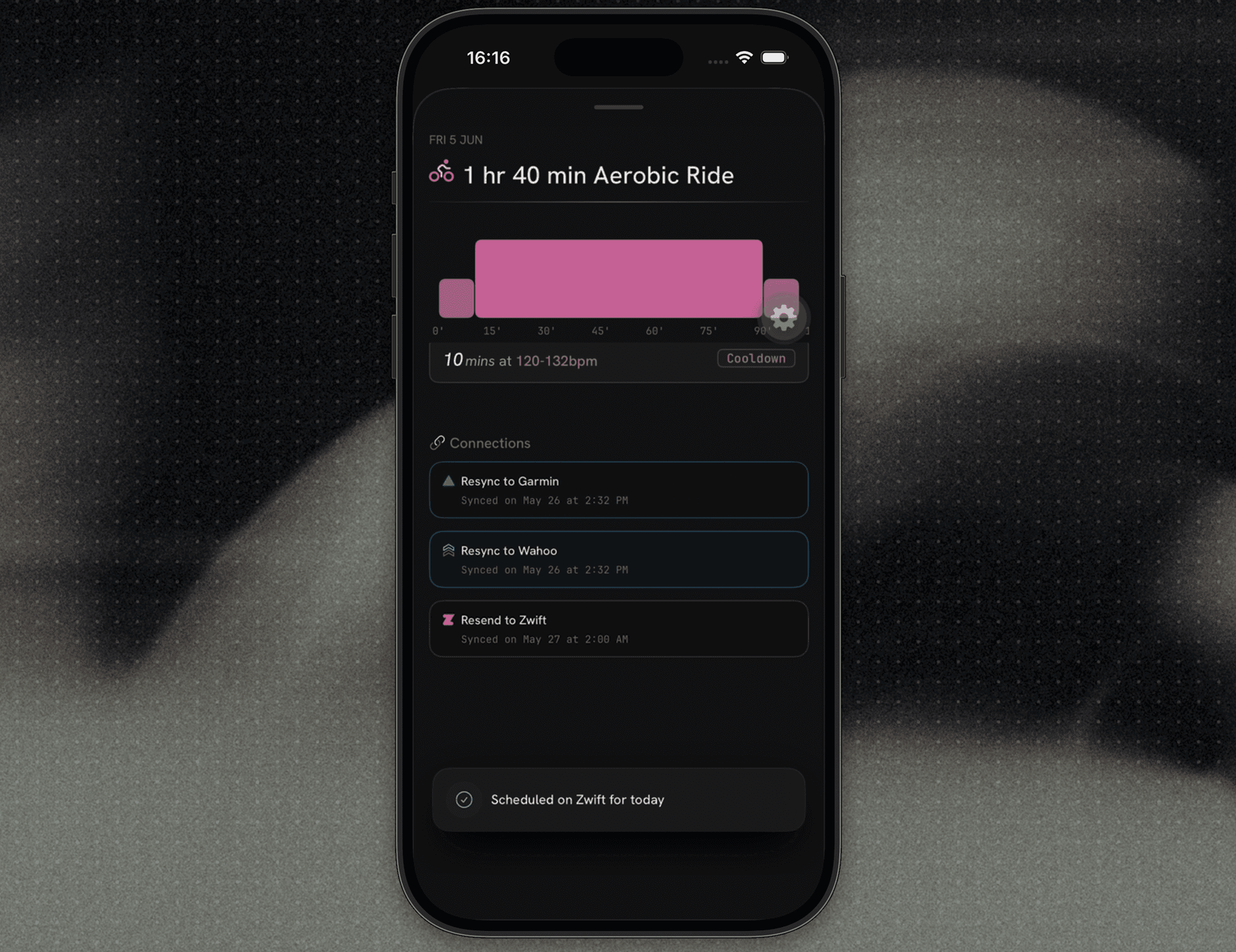
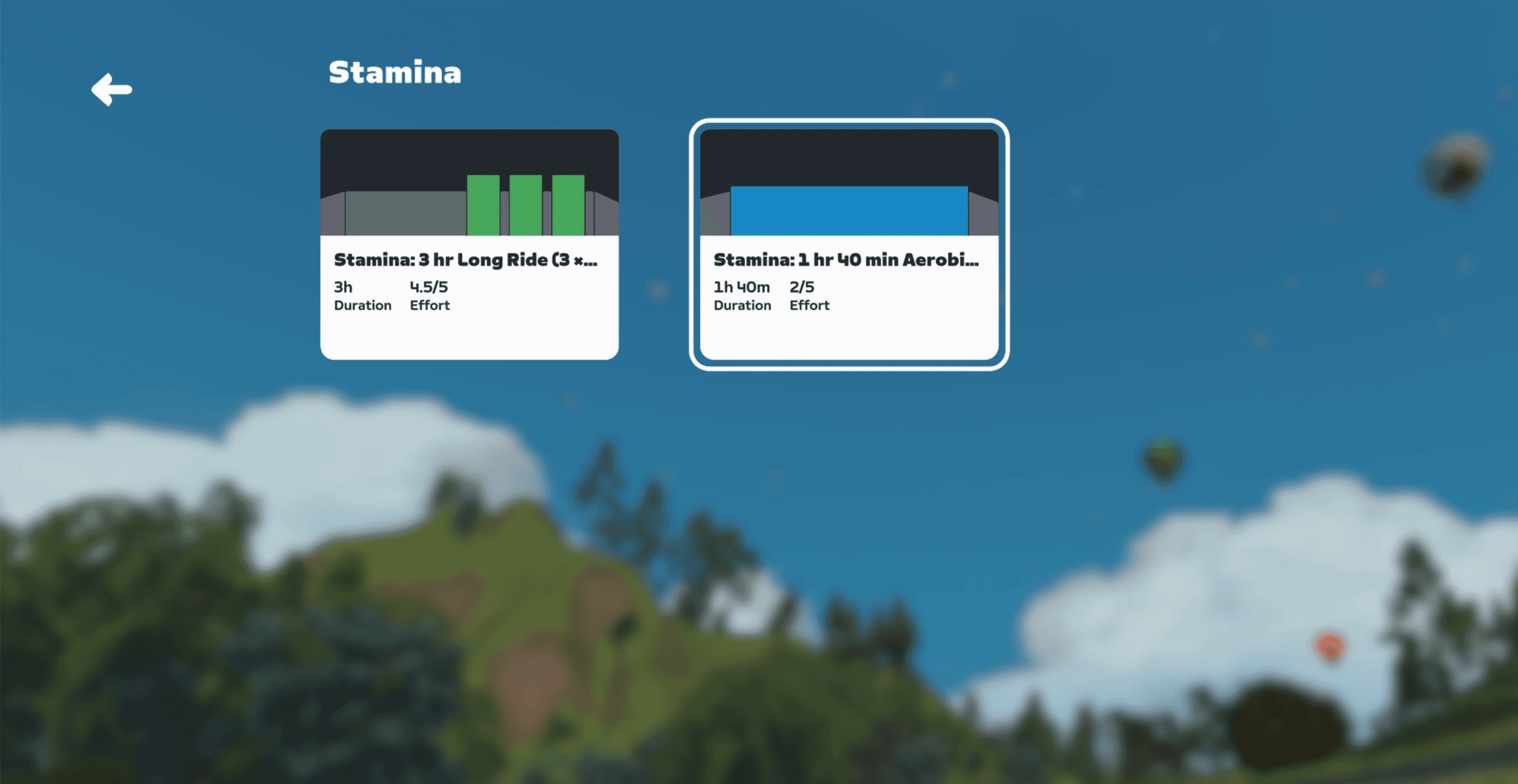
When Zwift is connected, Stamina automatically sends your planned cycling and running workouts to Zwift.
Open Zwift and find your Stamina workout in the relevant workout section for your activity.
Completed Zwift activities back to Stamina
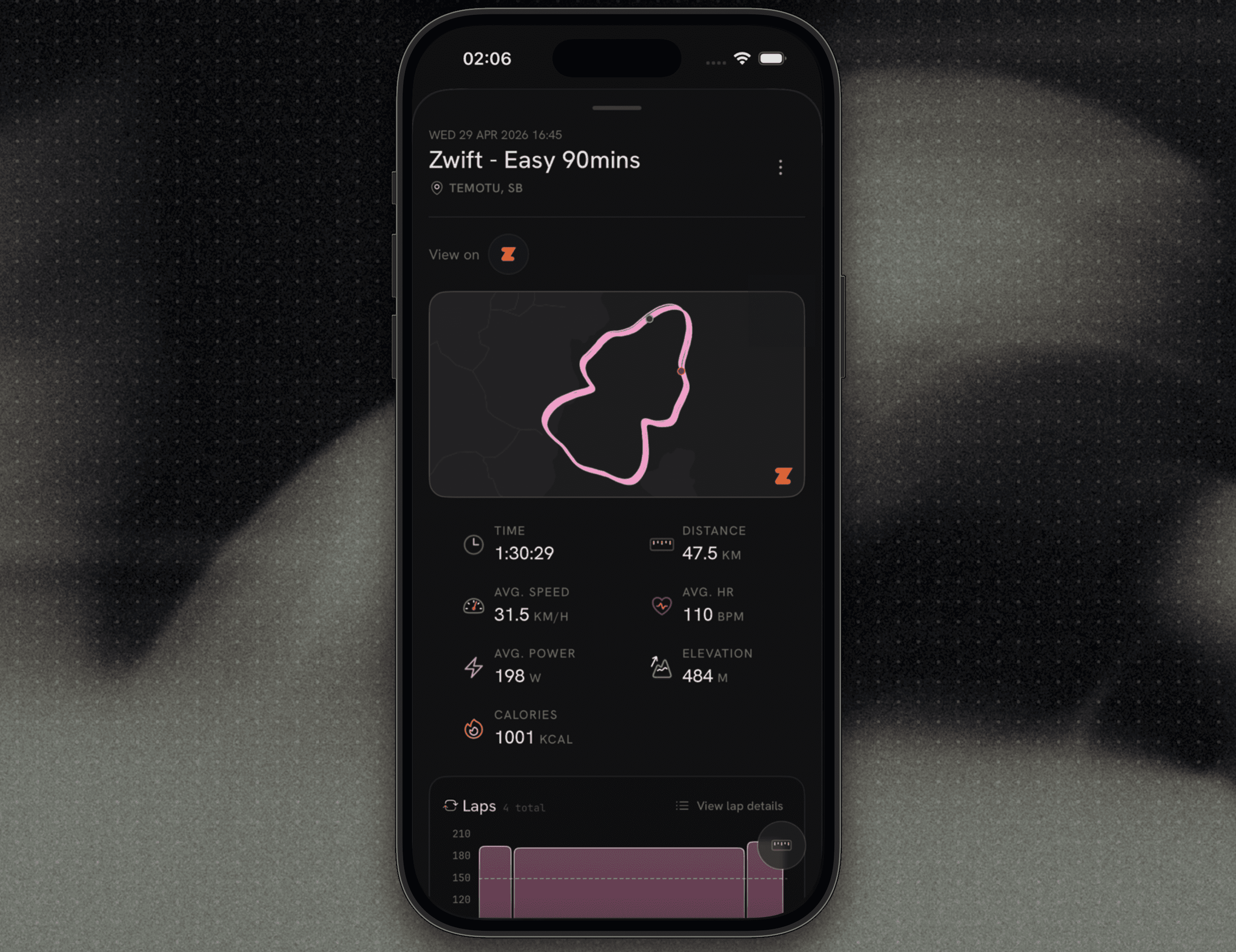
After you complete and save a ride or run on Zwift, Stamina will automatically import it into your training history.
This helps keep your plan, progress, and completed training up to date without needing to manually log the session.
Missing a Zwift activity?
If a completed Zwift workout does not appear in Stamina automatically:
Check that Zwift is still connected in Profile → Connected Apps and Devices.
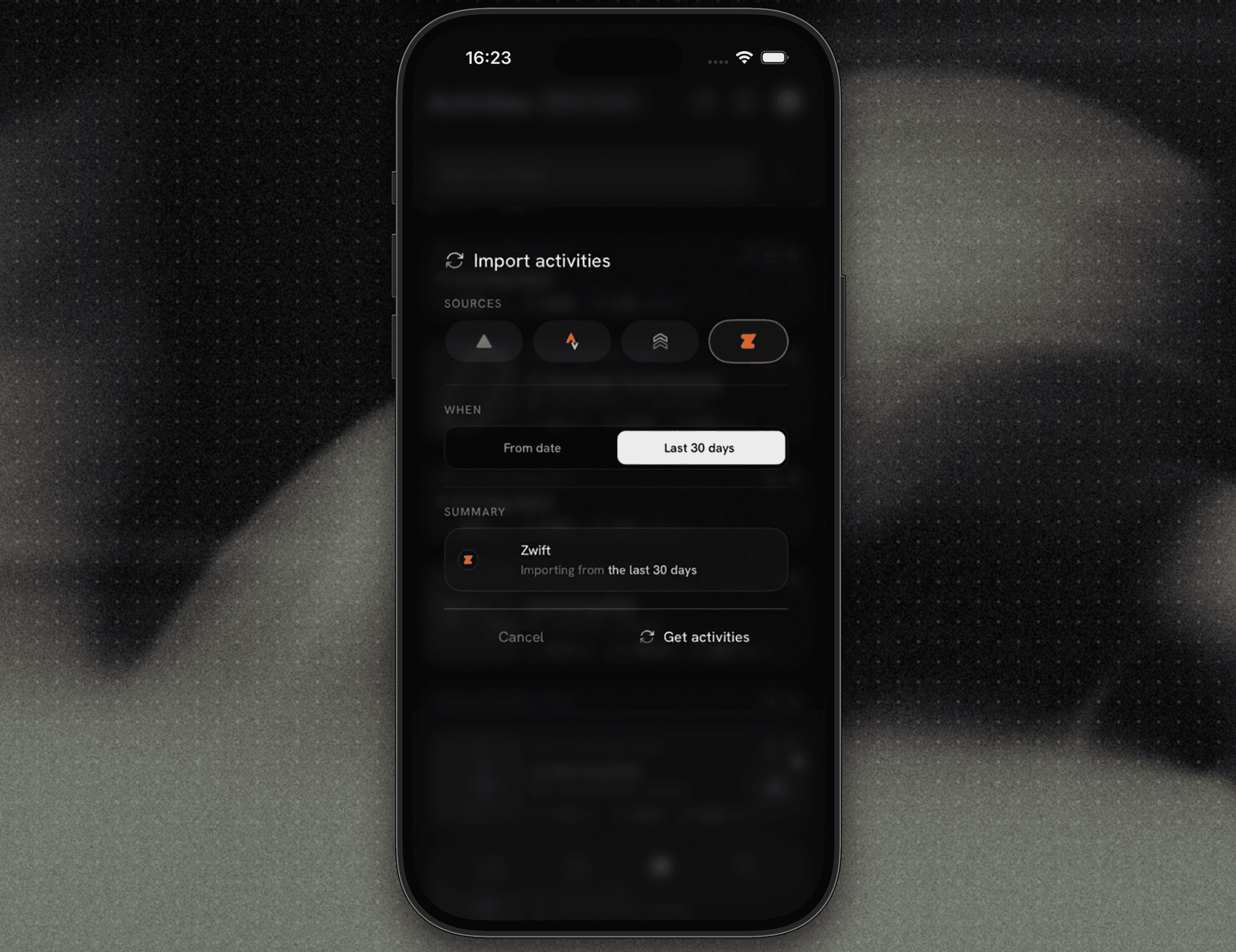
Go to the Activities tab.
Tap the … menu.
Select Import Activities to manually pull in recent Zwift activities.
How to disconnect Zwift from Stamina
To remove the connection:
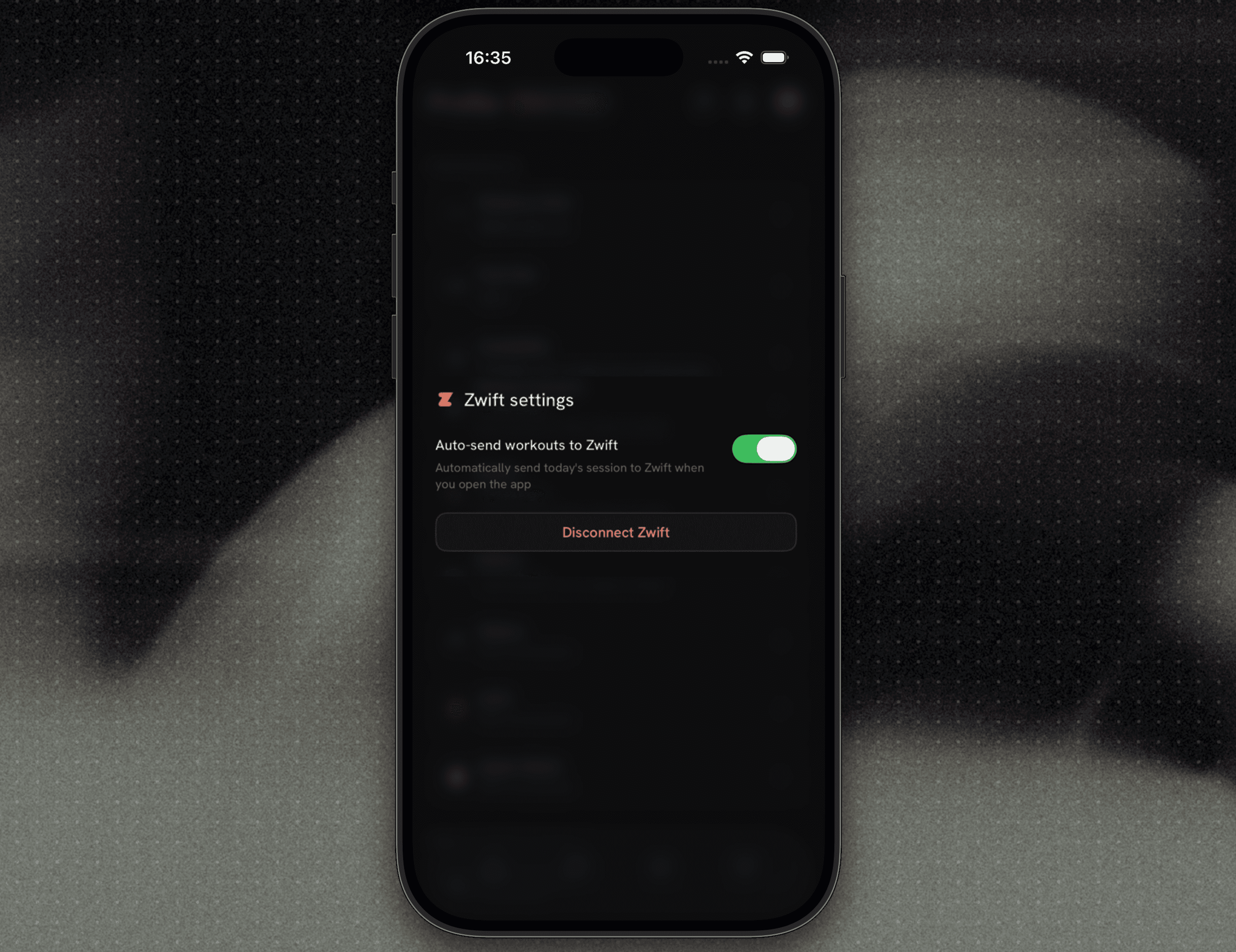
Go to Profile → Connected Apps and Devices → Zwift → Disconnect.
Once disconnected, Stamina will stop sending planned workouts to Zwift, and completed Zwift activities will stop syncing back into Stamina.
You can always reconnect Zwift at any time using the same steps above.